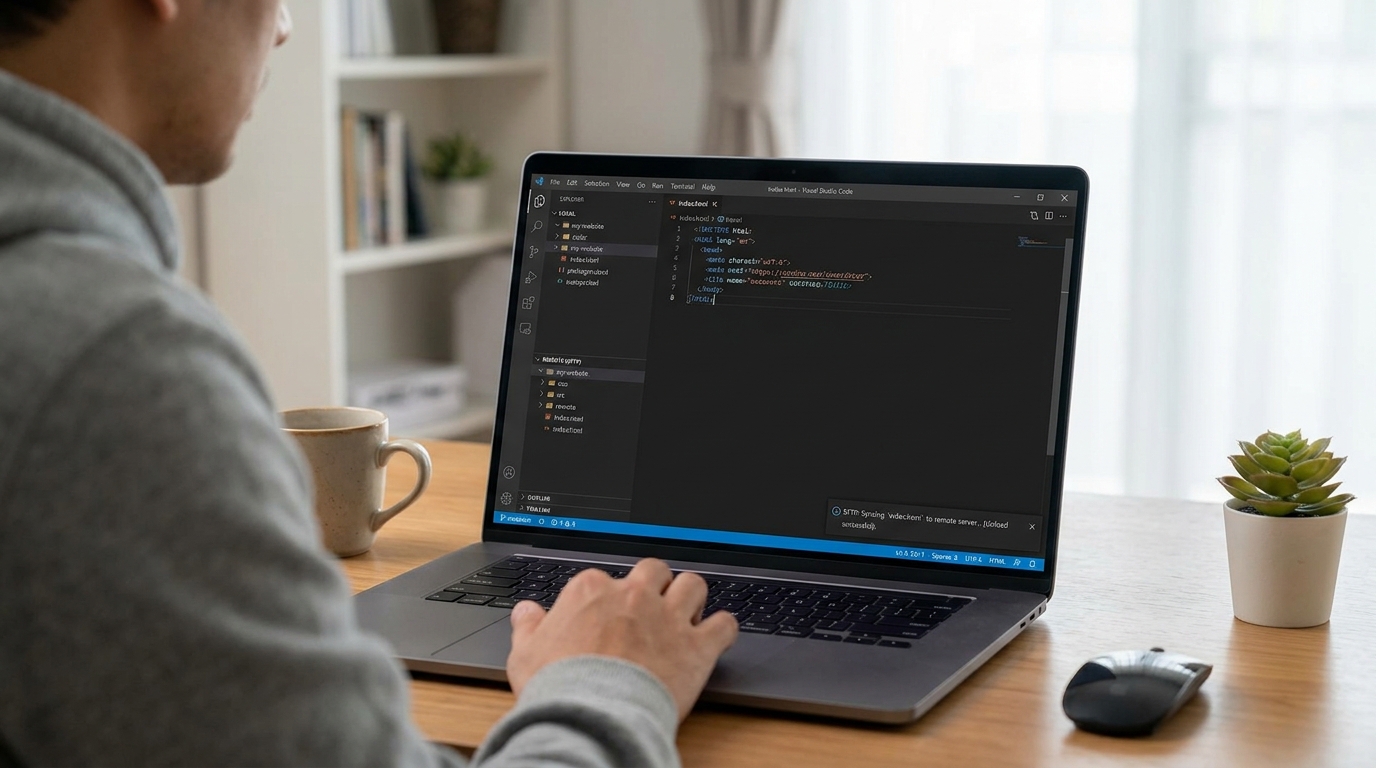
How to Implement Low-Latency SFTP File Synchronization Workflows in VS Code: A Beginner’s Guide
Developing locally while executing code on a remote staging server or remote virtual machine should feel instantaneous. Manual uploads via standalone FTP clients disrupt developer focus, while misconfigured background sync tools often trigger heavy system load, network congestion, and multi-second file transfer lags on every save.
By building a low-latency SFTP synchronization pipeline in Visual Studio Code, you can achieve sub-second automated background uploads the moment you hit Ctrl+S (or Cmd+S), combining local editing speeds with seamless remote environment synchronization.
Step 1: Install a Modern, Maintained SFTP Extension
The original liximomo.sftp extension was deprecated years ago. Using unmaintained forks leads to memory leaks, high CPU utilization during file scans, and broken connection handling in recent VS Code releases.
For maximum performance and compatibility, install an actively maintained community fork:
- SFTP by Natizyskunk (
Natizyskunk.sftp): The primary community standard, offering robust background transfer queues, proxy hopping, and active maintenance. - SFTP+ Sync (
thebestbradley.vscode-sftp-plus): An enhanced fork focused on faster file diffing and performance optimizations for large workspaces.
To install:
- Open VS Code and launch the Extensions view (
Ctrl+Shift+XorCmd+Shift+X). - Search for
Natizyskunk.sftp. - Click Install.
Step 2: Initialize Your Workspace Configuration
SFTP synchronization in VS Code is managed on a per-workspace basis using an sftp.json file inside your project's .vscode/ directory.
- Open your project root folder in VS Code.
- Open the Command Palette (
Ctrl+Shift+Pon Windows/Linux,Cmd+Shift+Pon macOS). - Type and run
SFTP: Config. - VS Code will automatically create and open
.vscode/sftp.json.
Step 3: Configure sftp.json for Sub-Second Latency
A default SFTP configuration functions out of the box, but it is not optimized for speed. To eliminate handshake delays and unnecessary file scans, update your sftp.json with performance-tuned parameters:
JSON
Low-Latency Configuration Breakdown
- Key Authentication (
privateKeyPath): Bypasses repetitive password exchange prompts and leverages persistent OpenSSH connection negotiation. - Direct File Writes (
"useTempFile": false): Disables uploading to an intermediary.tmpfile prior to renaming on the remote filesystem. This removes an entire network round-trip per uploaded file. - Aggressive Ignore Rules (
ignore): This is the most critical low-latency setting. Without strict ignore rules, the extension recursively scans thousands of files insidenode_modules/,.git/, or vendor directories during every synchronization pass, locking up the local I/O thread. - Targeted Watcher (
watcher): Restricts background monitoring strictly to source directories (e.g.,src/). When local build tools or compilers touch files, only relevant assets trigger remote pushes.
Step 4: Essential Shortcuts for Daily Operations
Once your workspace configuration is active, individual file uploads occur automatically upon saving. Use these built-in commands for project-wide operations:
| Goal | Command Palette (Ctrl+Shift+P / Cmd+Shift+P) | Context Menu Access |
| Download Entire Remote Project | SFTP: Download Project | Right-click Explorer root $\rightarrow$ SFTP: Download Project |
| Force Upload Active File | SFTP: Upload Active File | Right-click editor tab $\rightarrow$ SFTP: Upload |
| Diff Local vs. Remote File | SFTP: Diff Active File | Right-click active editor $\rightarrow$ SFTP: Diff |
| Browse Remote File System | SFTP: Focus on Remote View | Click the SFTP icon on the Activity Bar |
Step 5: Troubleshooting Latency & Connection Bottlenecks
If uploads feel delayed or stall during background execution, evaluate these operational bottlenecks:
- Inspect Real-Time Transfer Logs:
- Navigate to View $\rightarrow$ Output and select SFTP from the channel dropdown to monitor network requests, payload sizes, and connection state errors in real time.
- Synchronize
.gitignoreandignorePaths: - Ensure every build artifact, cache directory, and dependency folder declared in your
.gitignoreis explicitly duplicated insidesftp.json'signorearray. - High Latency Networks (>150ms Ping):
- If working across vast geographic distances, enable compression in your OpenSSH client configuration (
~/.ssh/config) rather than inside VS Code: - Code snippet
- This maintains an open SSH socket pool in the background, eliminating connection teardown and setup costs between individual file saves.